What you’ll do in Stohb
- Create a draft store in Stohb Sites.
- Prepare listings customers can understand.
- Check the store before sharing its address.
Follow the screens using your own business details. The screenshots were captured in the actual Stohb apps with local guide examples. Prices, customers and results shown are illustrative.
Build your store in Stohb Sites
Have a store name, a small product range, accurate prices and a delivery plan ready. Use a draft while preparing the store.
1. Choose Store from the starting screen
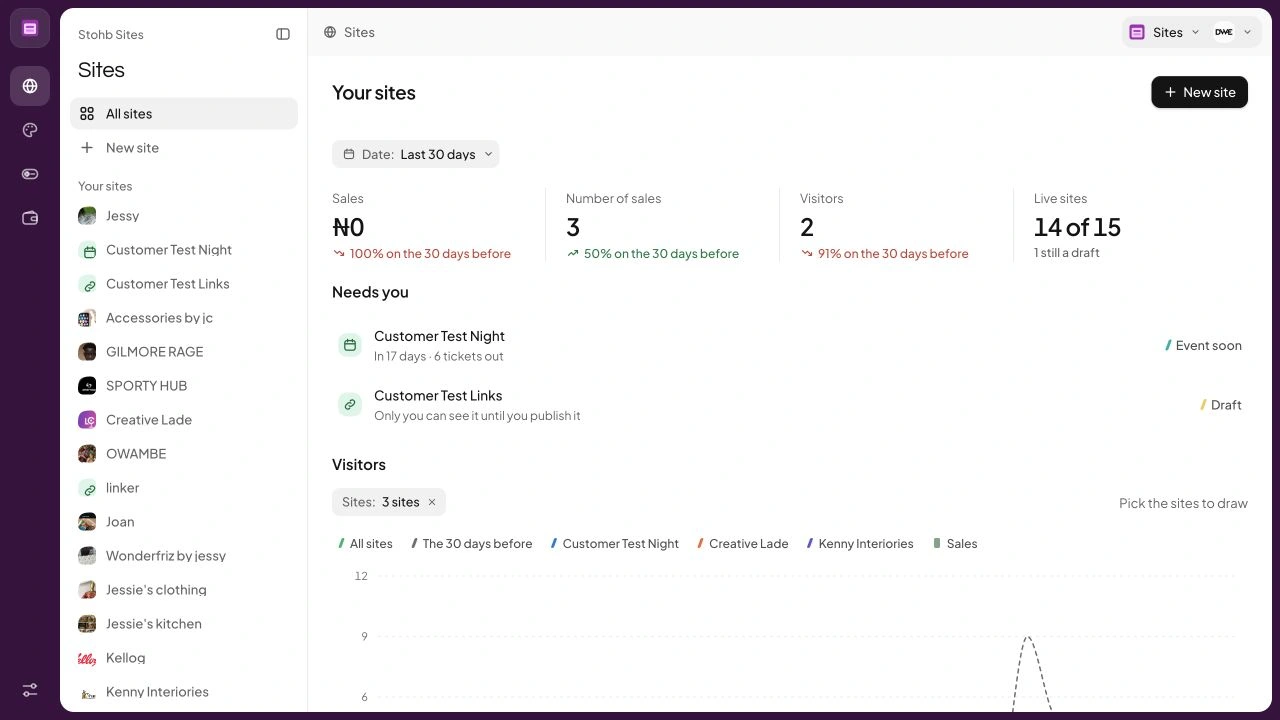
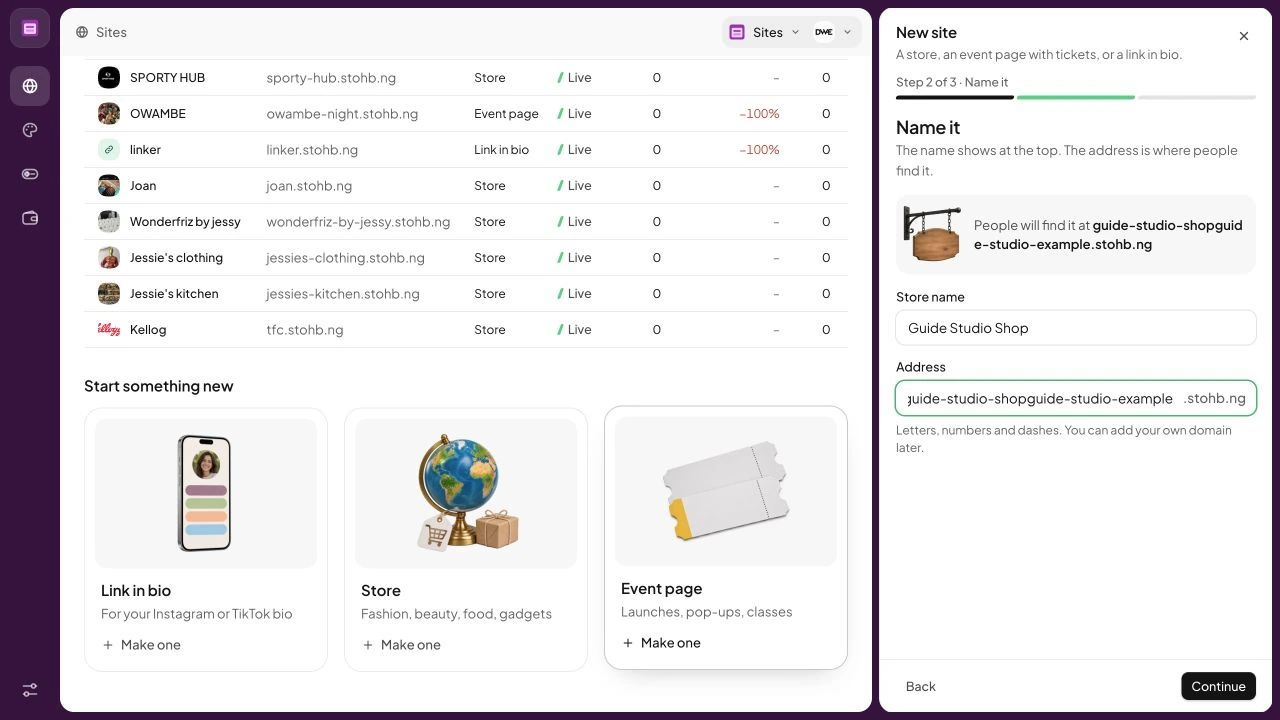
Open Sites and choose Store under Start something new. You can also start from New site. Stohb opens the new-site form with the store type selected. This gives you a working starting point without making you design every page before you have a catalogue.
 Enlarge screenshot
Choose Store in Stohb Sites to begin a store draft. Check the result: The new-site form is set to make a store.
2. Give the store a name and address
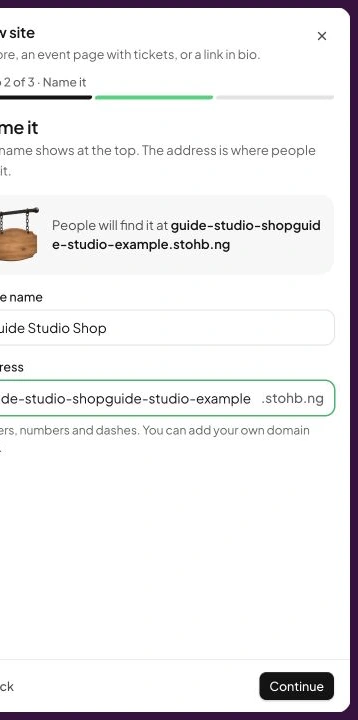
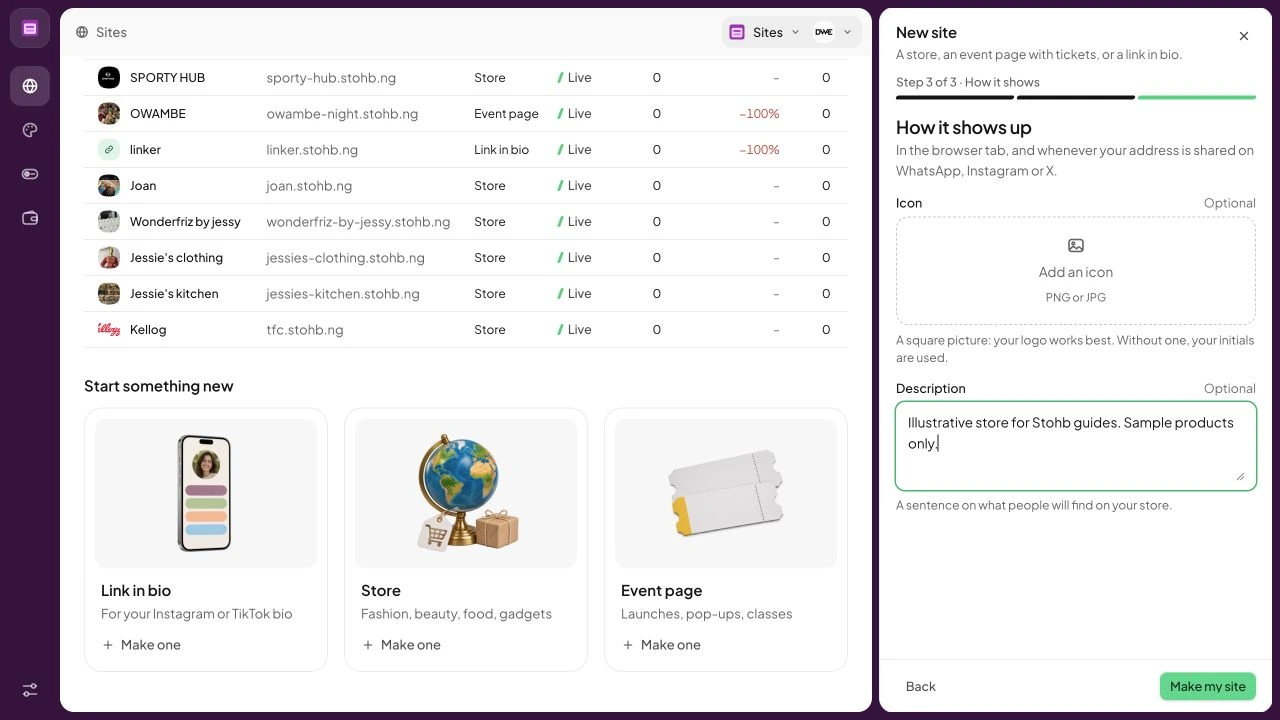
Enter the Store name. Stohb proposes an address from that name; replace the Address field if you want a different available name. Use letters, numbers and dashes. Read the complete address before continuing, especially if you have edited an automatically filled value. The example store is Guide Studio Shop.
 Enlarge screenshot
The Name it step contains Store name and Address. Check the result: You have checked the name buyers will recognise and the address they will use.
3. Explain what shoppers will find
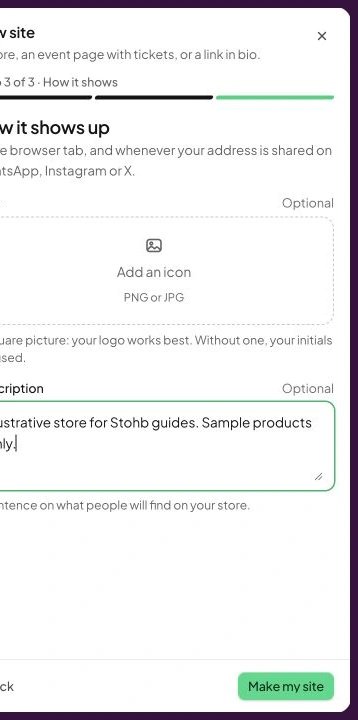
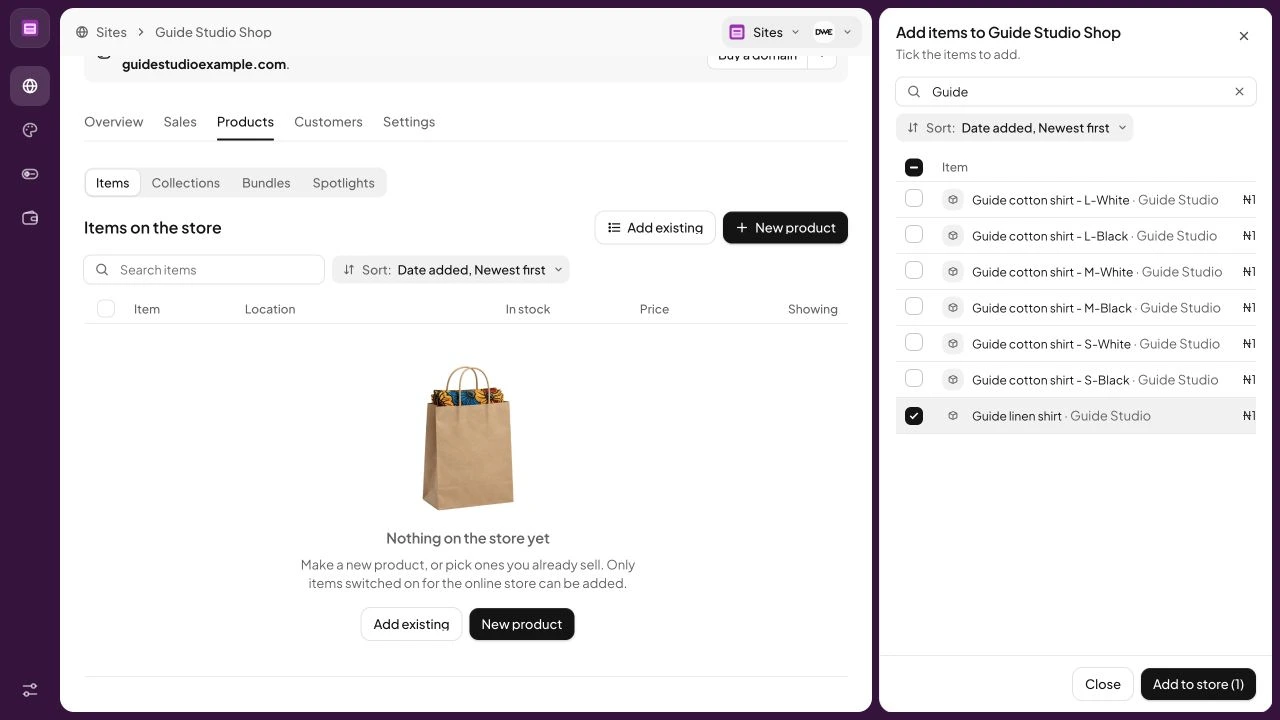
Continue to How it shows up. Add a square icon if you have one and write a short description of what the store sells. These details help identify the store when its address is shared. Choose Make my site to create the draft. Creating it does not by itself make the store live.
 Enlarge screenshot
Add a description and optional icon before creating the site. Check the result: Your store exists as a draft you can continue preparing.
4. Add products from your Stohb catalogue
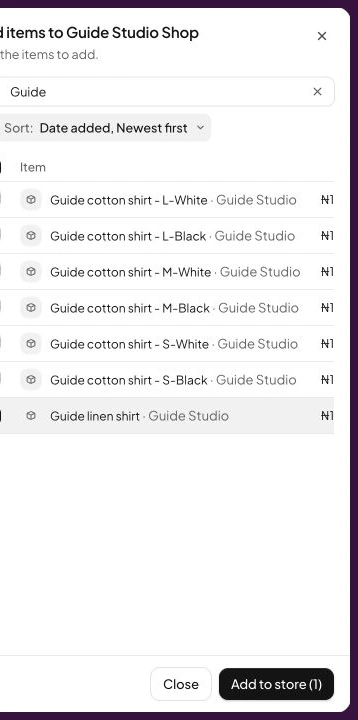
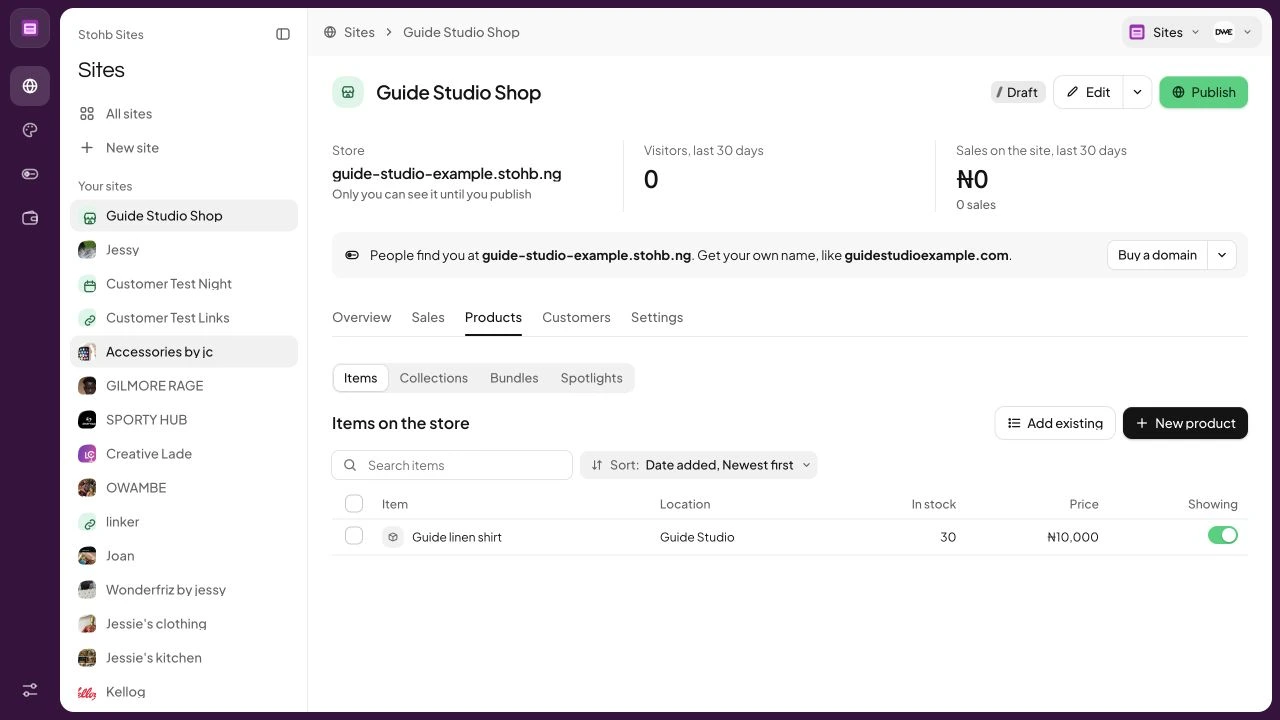
Open the store’s Products tab and choose Add existing. Search for the products you want, tick the correct rows and use Add to store. In our example we choose Guide linen shirt from Guide Studio. Only items switched on for the online store are eligible, so check the item’s selling-app settings if it is missing.
 Enlarge screenshot
The real item picker with the example product selected. Check the result: The store has the intended catalogue item rather than an unrelated product.
5. Check what is actually on the store
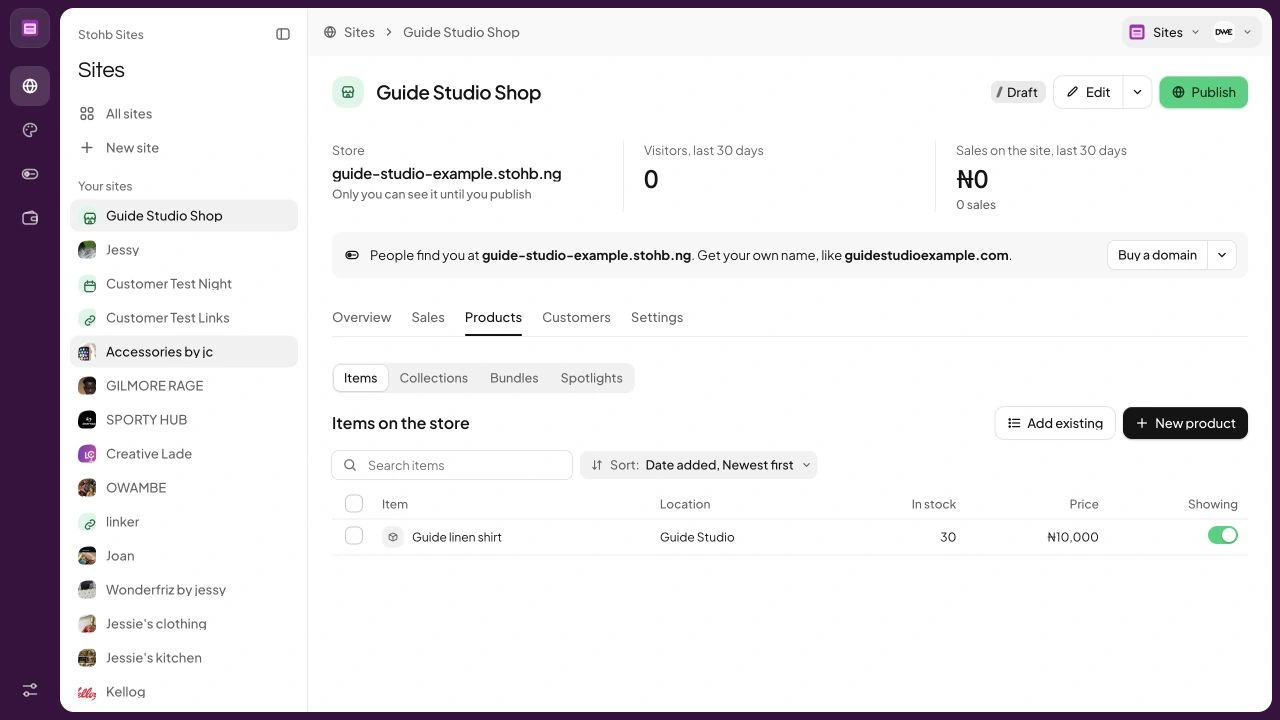
Review Products after adding the item. Check the item name, quantity and price. If you need a new product instead of an existing one, use New product. Keep the information complete before launch: useful photos, a factual description and accurate options matter as much as the layout.
 Enlarge screenshot
The Products tab after the guide item was added. Check the result: Your store catalogue contains the product you intended to sell.
6. Edit the page and review its phone layout
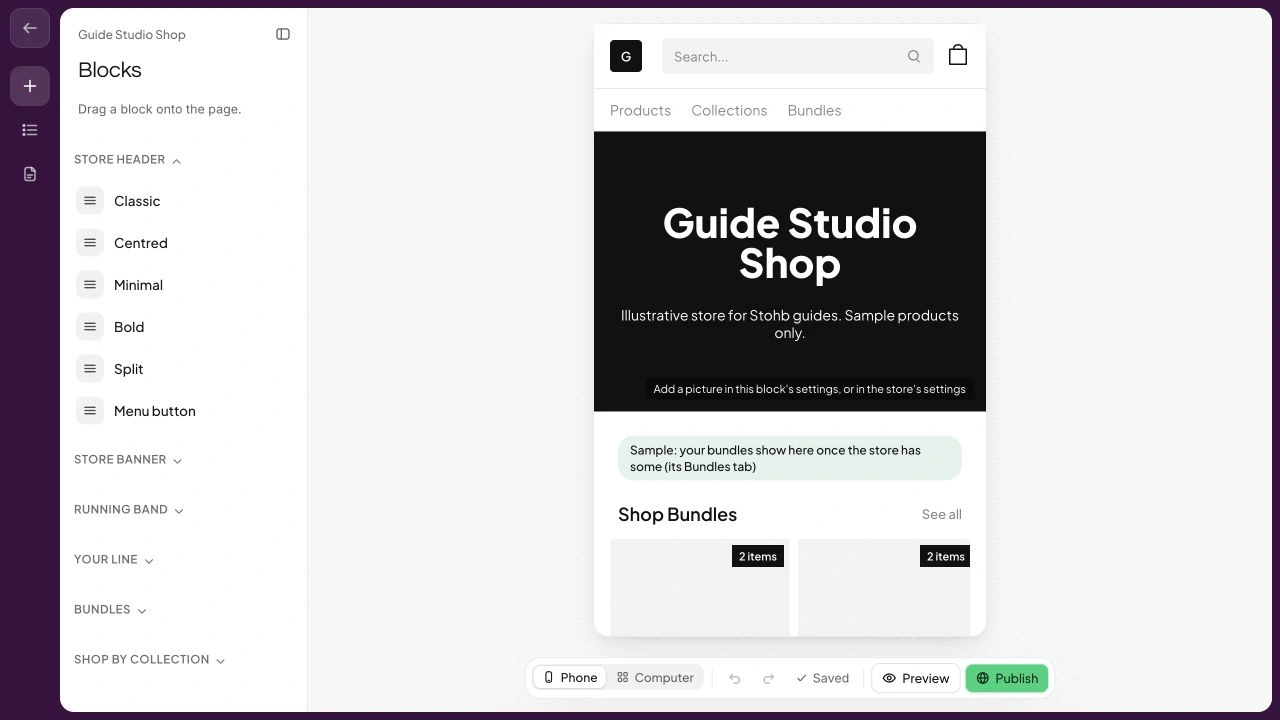
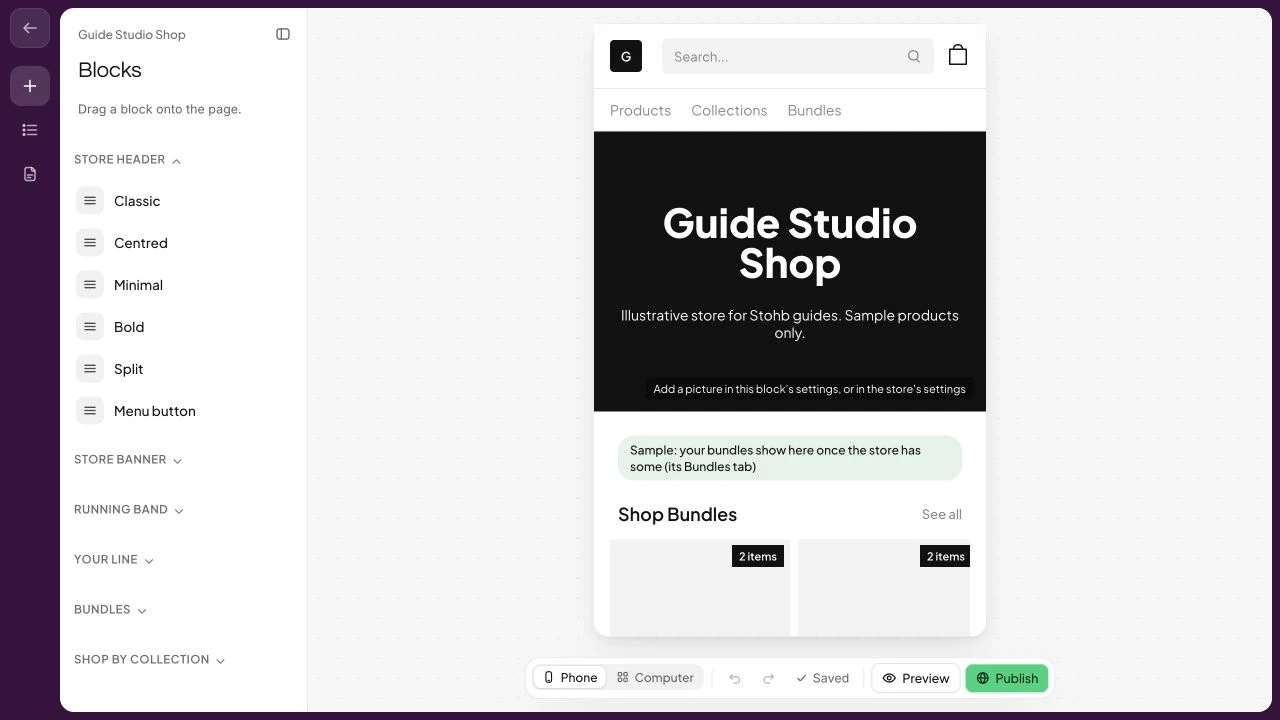
Select Edit to open the store editor. Blocks controls what appears on the page. Use the Phone control to review the layout at a smaller width, and check the Computer view too. Remove sections you are not ready to use and prepare the delivery and payment information before publishing. Keep the store as a draft while checking it; use Publish only when you are ready for customers.
 Enlarge screenshot
The actual Sites editor in its Phone view. Check the result: You have reviewed the draft as a shopper would see it on a phone.
Understand the decisions behind the steps
The app keeps the record useful. These explanations help you decide what to enter and how to interpret what Stohb shows.
Choose a small opening range
An online store starts with an offer a customer can understand. You do not need every product you might eventually sell. Choose a range you can describe accurately, price sensibly and fulfil reliably. A small useful catalogue is a better launch foundation than a large unfinished one.
Separate ready stock from products that must be ordered or made. If an item is a preorder, say so before the customer pays. Confirm supplier timing and make your delivery explanation reflect the full wait, including the time needed to prepare the order.
Prepare the information for each listing
For each product, collect its name, price, photos, description, available options and quantity. An option such as size or colour can change what is actually available. ‘Linen shirt’ identifies a design; ‘linen shirt, black, medium’ identifies the version a buyer expects to receive.
Use descriptions that answer practical questions: material, dimensions, fit, care and what comes in the package. Avoid guessing details you have not checked. Photograph useful angles and include a scale reference where size is difficult to judge. A clear product page reduces repeated questions and prevents avoidable disappointment.
Build the storefront in Stohb Sites
Use Sites to choose a store template and prepare the catalogue you want customers to browse. Keep the first version focused: useful product information, understandable navigation and a clear route to placing an order. Check the current plan before launch; Sites is a paid app.
Review the store as a buyer rather than as the person who built it. Open it on a phone, read the product names and select the available options. Make sure photographs show the correct item. A layout can look attractive while still leaving the buyer unsure what they are choosing.
Explain the full cost and delivery arrangements
Decide where you deliver, what the customer pays and how long the order should take. Where an address needs a separate quote, explain that before payment. Do not advertise a delivery promise that your supplier or courier cannot support.
In a fictional example, a shirt costs ₦20,000 and delivery costs ₦3,500. The buyer needs to understand the ₦23,500 payable total before completing the purchase. Product revenue and delivery charges also need clear records so that later sales figures do not become confusing.
Test the complete buying journey
Test browsing, product selection, available variants, cart information and the supported checkout process. Use a controlled demonstration or an appropriate test setup; do not create a real charge casually. Check that order details and payment information are understandable to both buyer and business.
Confirm what happens after the order is placed. Can you identify the item, quantity, selected variant and customer contact? Does the business know what still needs payment or fulfilment? A purchase confirmation is only useful if the next action is clear.
Launch with a fulfilment routine
Share the store link where your customers already find you. For a post about one item, send people to that product when a product link is available. For general browsing, share the shop. Tell people what they can do after opening the link.
For every order, check the actual payment record, pick the correct variant, inspect the item and confirm delivery details before dispatch. Keep the order reference with the parcel record. After your first few orders, review the questions people still ask and improve the relevant page instead of repeatedly answering the same missing information.
Before you move on
- Check every product, option and available quantity.
- Show the payable total and delivery expectations.
- Test on a phone and inspect the resulting order.
- Prepare packing, payment checks and customer support before sharing the link.
A few useful answers
Do I need to know how to code?
You can build a storefront from templates in Sites. You still need accurate product information and a tested buying process.
Should I launch with all my products?
Start with a range you can describe and fulfil reliably. Expand after the first buying journey works.