What you’ll do in Stohb
- Choose the app that fits today’s task.
- Find the first action in your Stohb workspace.
- Connect the next app when the work needs it.
Follow the screens using your own business details. The screenshots were captured in the actual Stohb apps with local guide examples. Prices, customers and results shown are illustrative.
Find your starting app in Stohb
Sign in to your Stohb account and choose the business workspace you want to work in. The screenshots use an example workspace.
1. Start from your business home
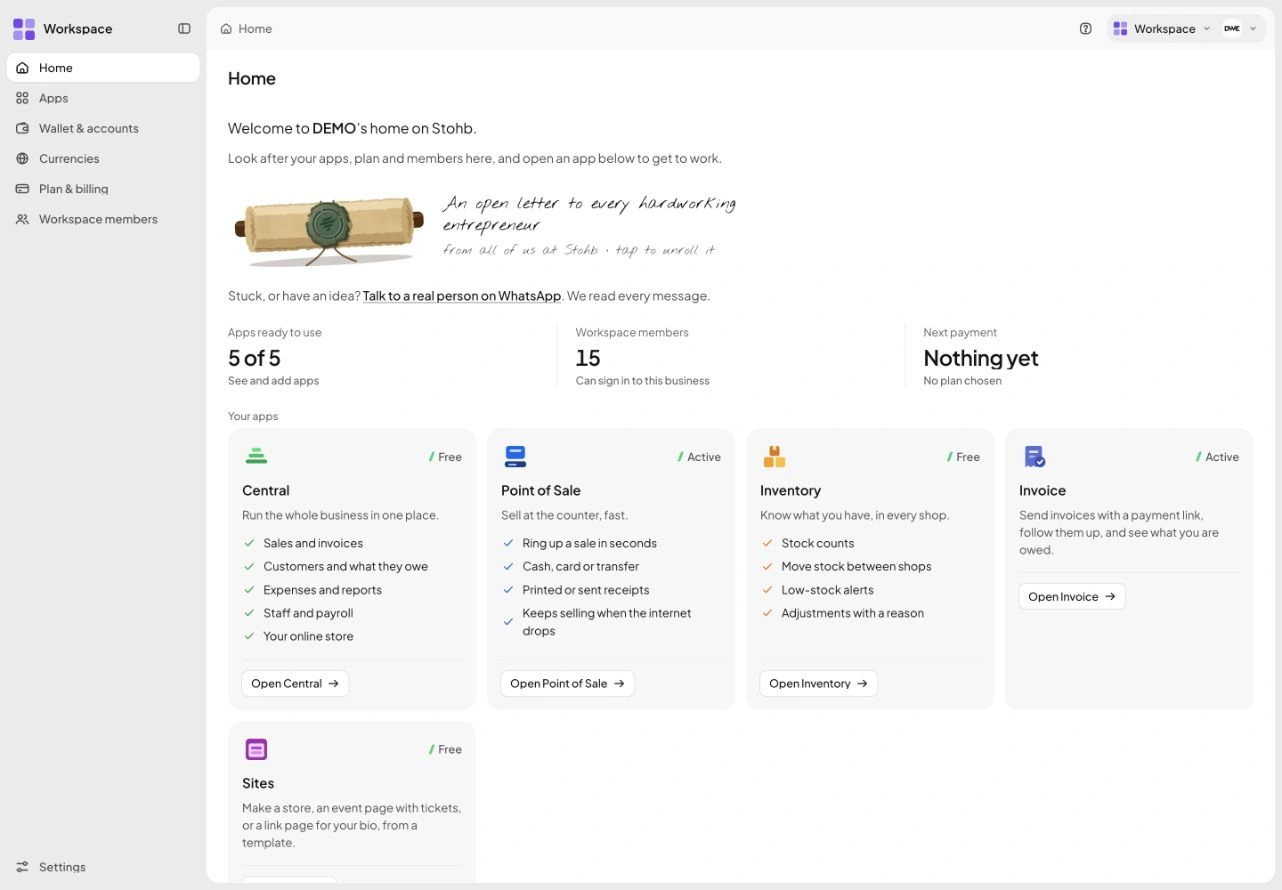
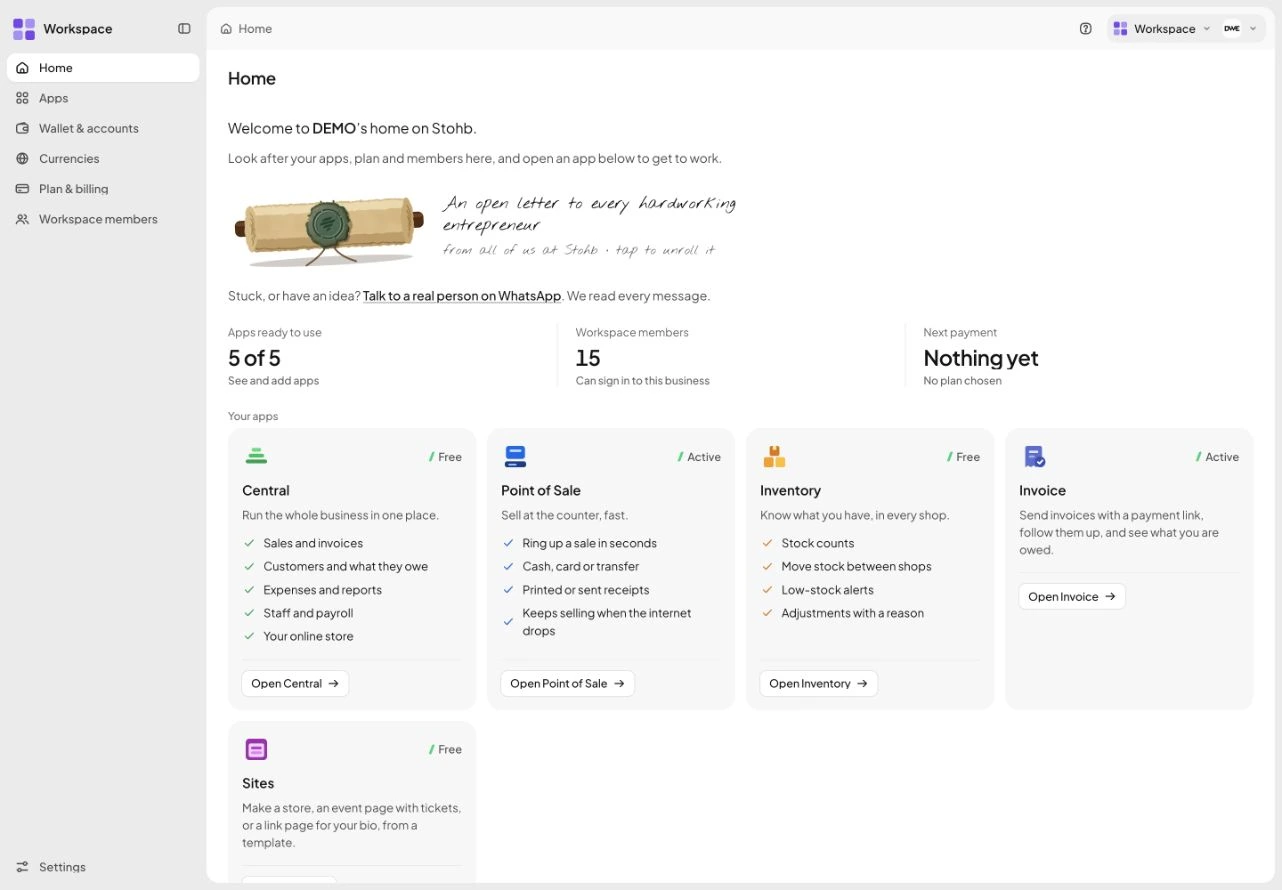
Open Workspace. Home brings the apps belonging to the business into one place, alongside its plan and members. Read the short explanation on the relevant app before opening it. If the immediate job is a client bill, choose Invoice; for a shop link, choose Sites. You can come back to the same workspace when the next task needs a different app.
 Enlarge screenshot
Workspace Home shows the apps available to this example business. Check the result: You know which business you are in and which app matches your next task.
2. Check the app directory
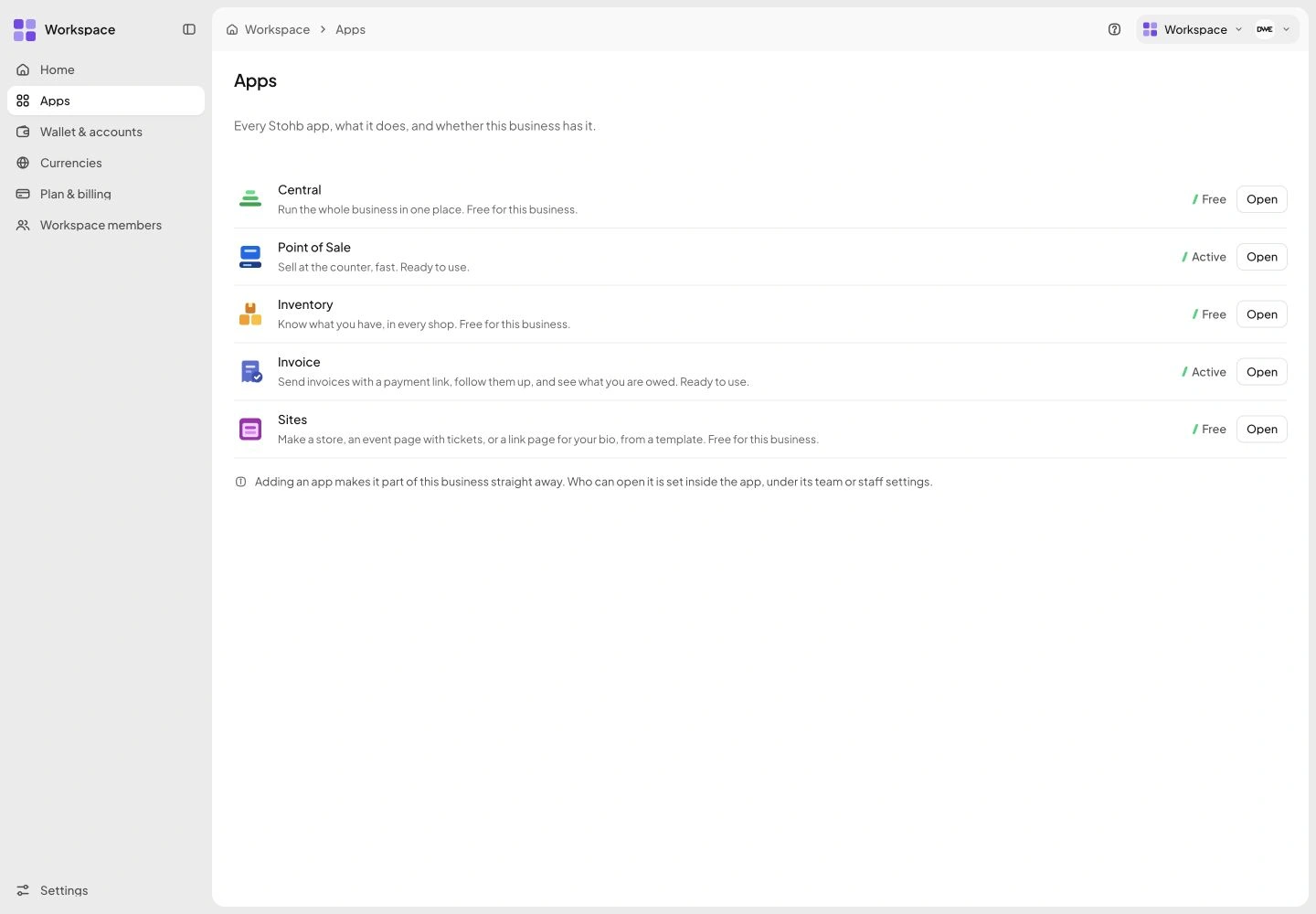
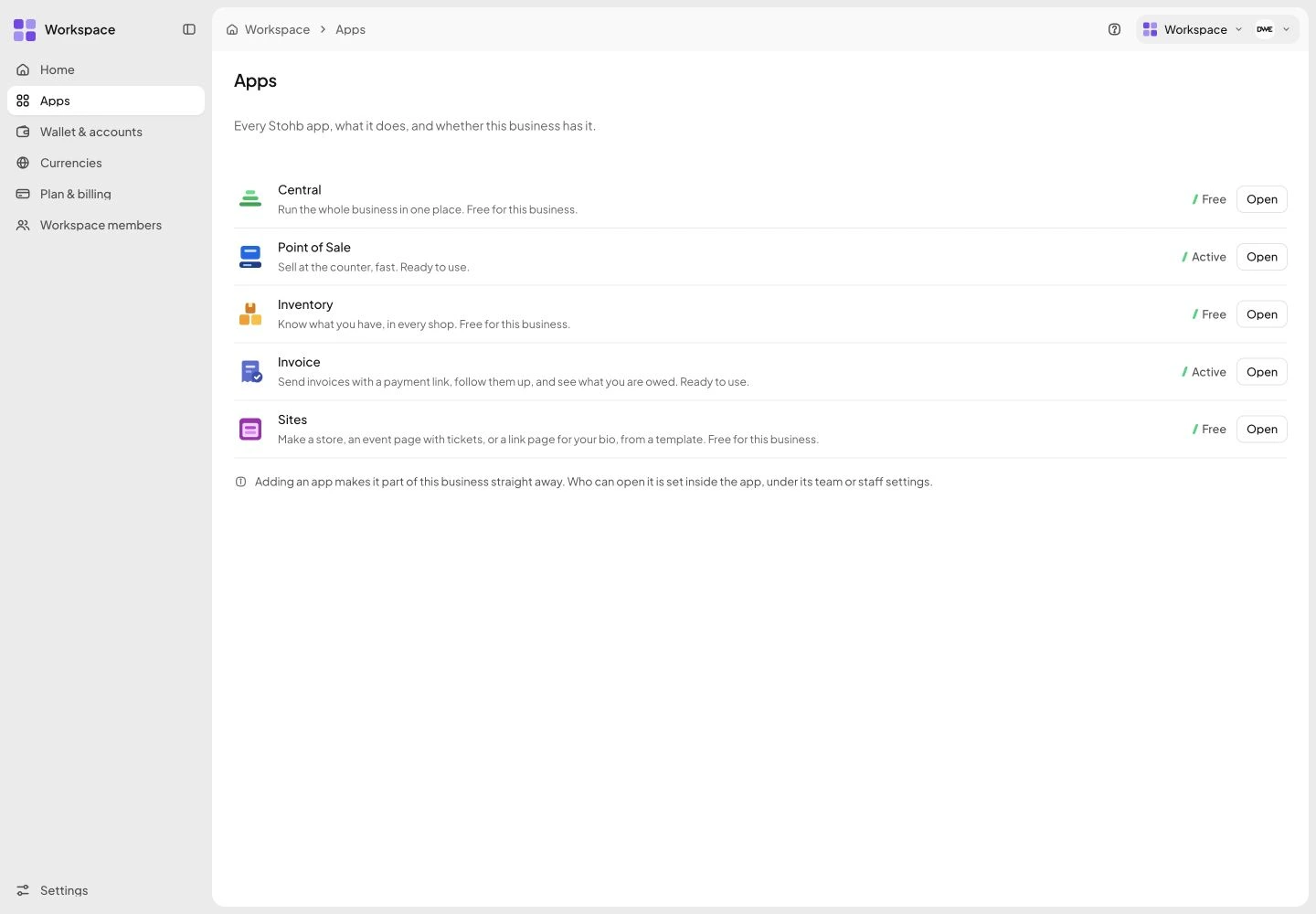
Select Apps in the Workspace sidebar. This view describes each app and shows its status for the business. Check the current availability and plan before deciding what to use. Opening an app is a practical starting point; it does not mean you must complete every app’s setup before doing your first job.
 Enlarge screenshot
Apps lists the tools and their status in the selected workspace. Check the result: You have checked the app you want to open.
3. Move between tasks with the app switcher
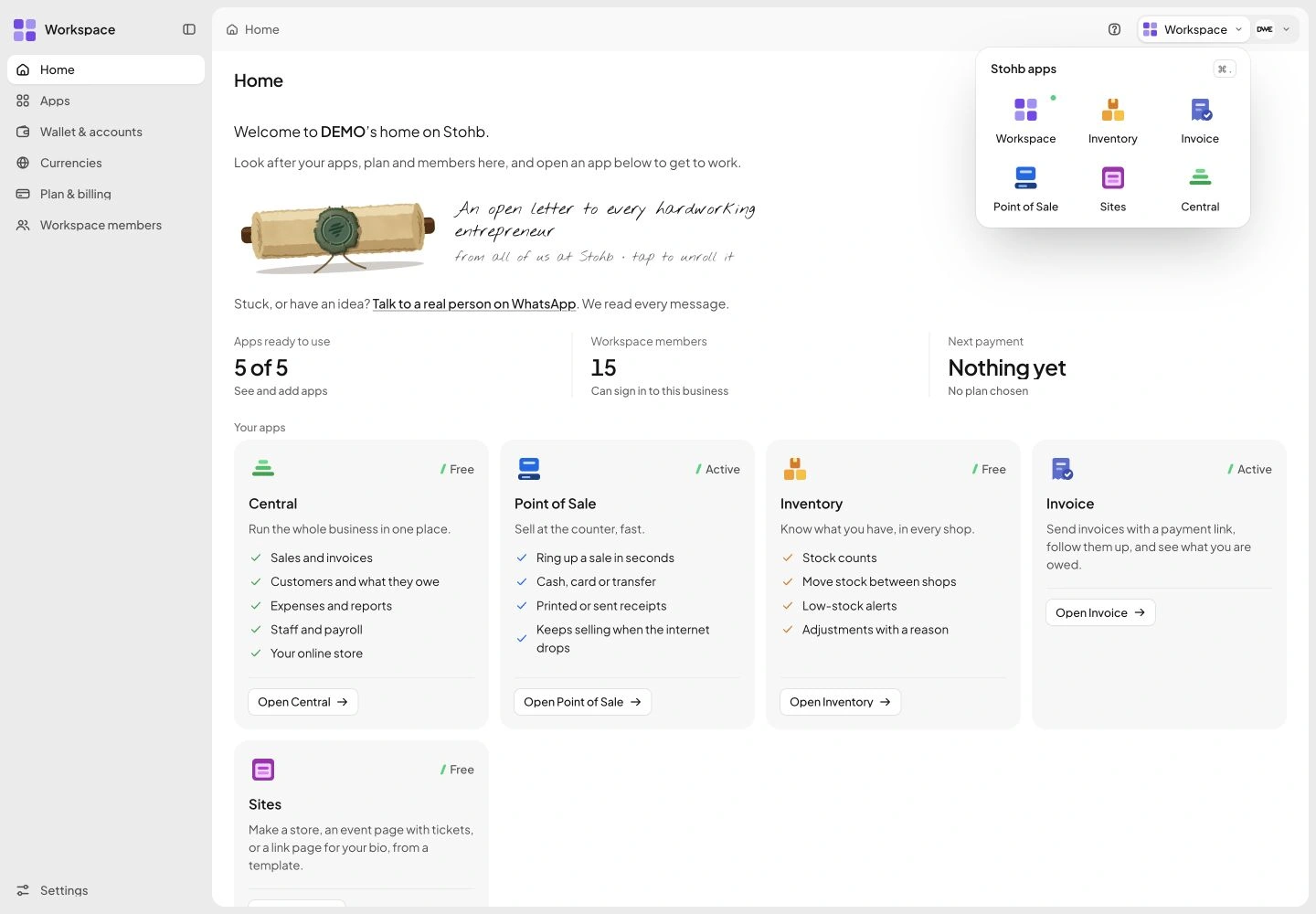
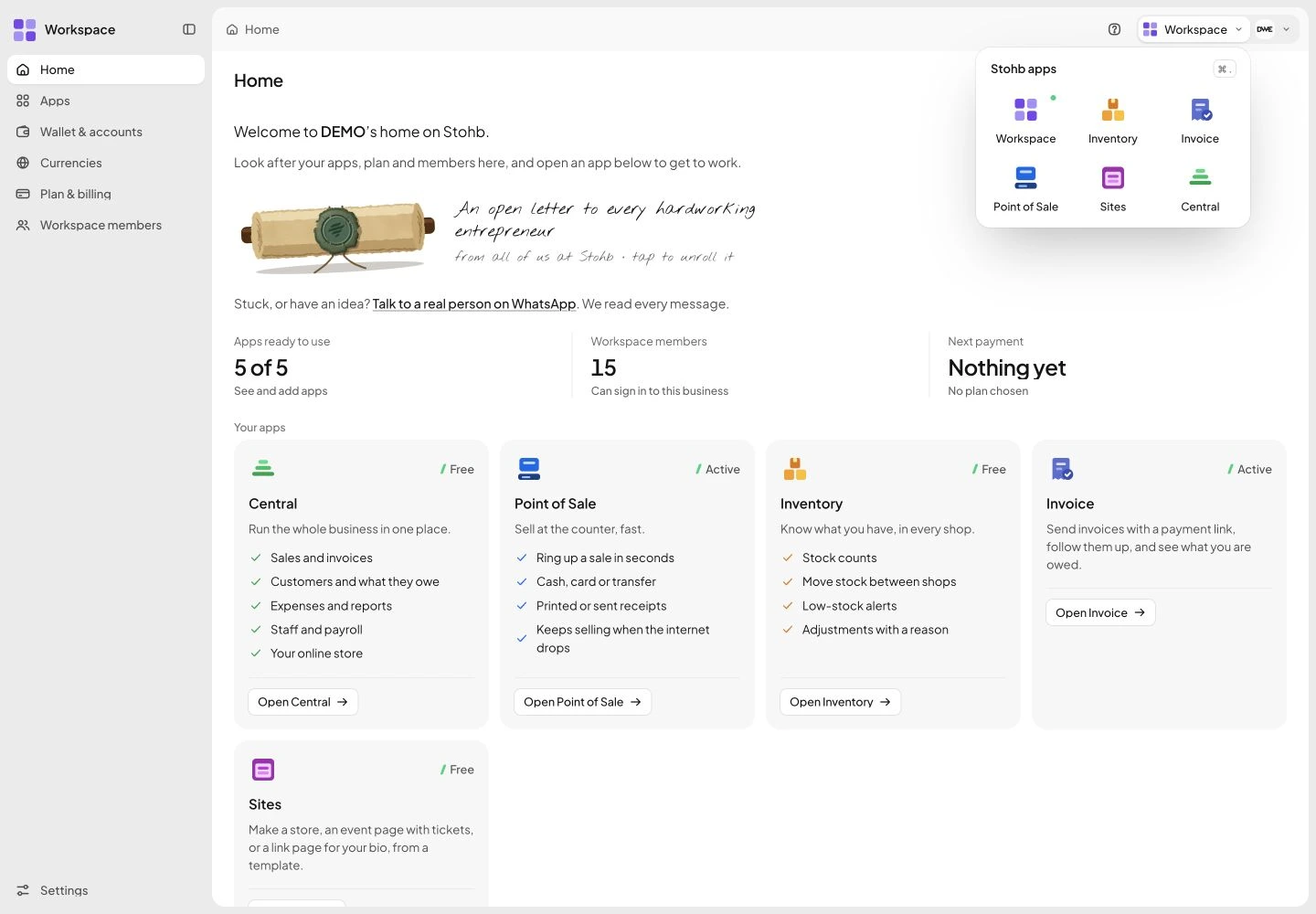
Use the app selector at the top of the page when you need another tool. In the example, the switcher lists Workspace, Inventory, Invoice, Point of Sale, Sites and Central. Choose the task you need next and confirm the workspace name remains the intended business. Each person should use their own access rather than a shared owner login.
 Enlarge screenshot
The Stohb app switcher, opened from Workspace. Check the result: You can return to the right business and move to another available app.
Understand the decisions behind the steps
The app keeps the record useful. These explanations help you decide what to enter and how to interpret what Stohb shows.
Choose the task you need to finish today
You do not need to organise an entire future company before doing your first useful piece of work. Begin with the task that is already waiting: a customer needs an invoice, your products need a shop link, or you need to know how many items remain.
Write that task in one sentence. ‘I need to send a client a bill’ is specific enough to act on. ‘I need to digitise my business’ leaves too many decisions open. Your first app should help you finish the specific task, with a record you can find again.
Understand what each app is for
Sites gives your business an online storefront. Invoice helps you bill customers and follow outstanding amounts. Central brings everyday sales, customer records, items, expenses and reports together. Inventory helps you track quantities and stock movements at your locations. POS supports selling at the counter. Workspace is where the owner manages people, app access and plans.
These names describe different jobs within the same business. A catalogue is your list of products or services. A location is where stock is kept or business activity happens. A sales record describes a particular transaction. Understanding those three things makes choosing your starting point much less confusing.
If you need an online shop, begin with Sites
Prepare a small set of products before designing every corner of the store. Each listing needs a useful name, a clear photo, a price and accurate options such as size or colour. Decide how you will explain delivery and answer customer questions.
Choose a template, bring the right catalogue items into the store and check the buyer experience on a phone. Sites is a paid app. Check the current plan before committing to your launch. A store link is most useful when the customer can understand the product and the next step without returning to ask basic questions.
If you need to bill someone, begin with Invoice
A freelancer can begin with a customer, a service item and payment terms. Payment terms explain how long the customer has to pay. Create the invoice, review its total and send it by email. Keep the full amount visible even when you agree to accept a deposit.
Free Invoice currently includes up to 10 items, 20 customers and 3 terms, with owner-only access. Recurring invoices and team access belong to the paid plan. A recurring invoice is a bill created on a schedule; it does not automatically charge the customer’s bank account or card.
If you already sell regularly, start with reliable records
Use Central when the immediate problem is keeping sales, customers, items and expenses together. A shop selling across a counter can use POS for that selling task. Inventory becomes useful when questions about sizes, quantities or locations keep interrupting the day.
For example, a clothing seller may know that 30 shirts remain but not know how many black medium shirts are in Ikeja. A single overall quantity cannot answer that question. Tracking each sellable combination at its location gives the record the detail the business actually needs.
Add more structure when there is a reason
Once your first task works, look for the next repeated problem. A store may need stock transfers. A freelancer may need recurring billing for an ongoing client. A growing team may need separate access rather than one shared login. Add the tool that addresses that problem.
Before inviting staff, write down what each person should be able to do. Review both access to an app and the permissions available inside it. Then test the staff view. Your useful starting point is the smallest setup that completes today’s work accurately and can be extended when tomorrow’s work changes.
Before you move on
- Choose one immediate task.
- Prepare the customer or product details it needs.
- Complete one controlled example and inspect the saved record.
- Check the current plan and give staff their own access when required.
A few useful answers
Do I need every app at once?
No. Start with the task you need today and choose additional app plans as your needs develop.
Do the apps represent separate businesses?
The apps support different tasks within your business workspace. Keep catalogue and sales records consistent as you connect more tools.