What you’ll do in Stohb
- Set size and colour options for an item.
- Check each generated variant.
- Review the stock at its actual location.
Follow the screens using your own business details. The screenshots were captured in the actual Stohb apps with local guide examples. Prices, customers and results shown are illustrative.
Create sizes and colours in Stohb Inventory
Decide which combinations you actually sell and count their opening quantities. Our example uses sizes S, M and L in Black and White.
1. Turn on options for the item
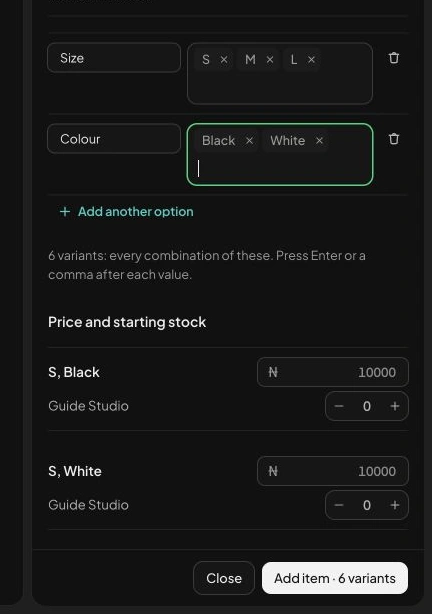
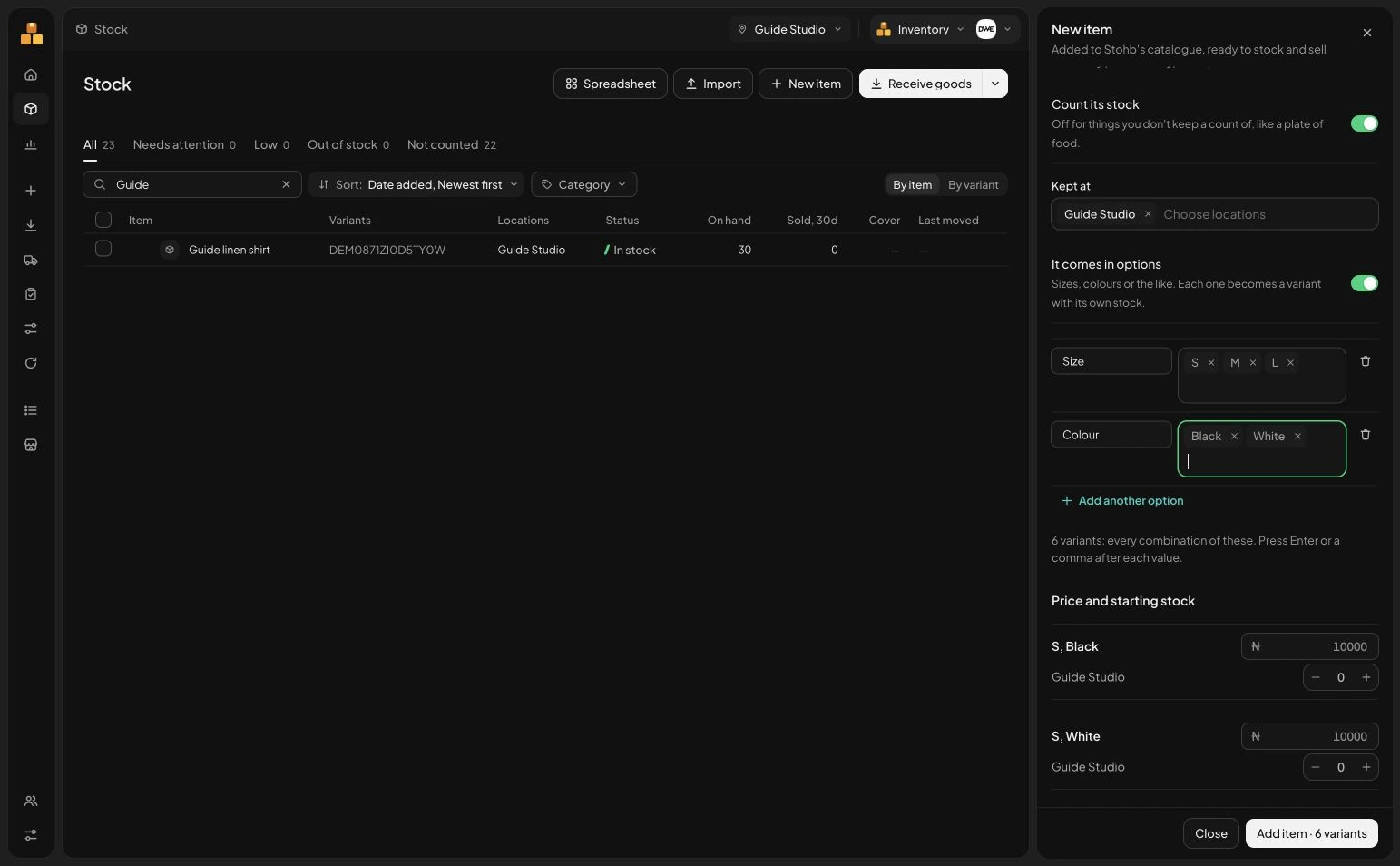
Choose New item and enter the product details. Turn on It comes in options. Enter Size as the option name and add S, M and L, pressing Enter or a comma after each value. Use Add another option to add Colour with Black and White. Stohb shows the six combinations generated from those values.
 Enlarge screenshot
Options on the real new-item form, with size and colour values. Check the result: Your options describe the sellable combinations in the example.
2. Check each variant’s quantity
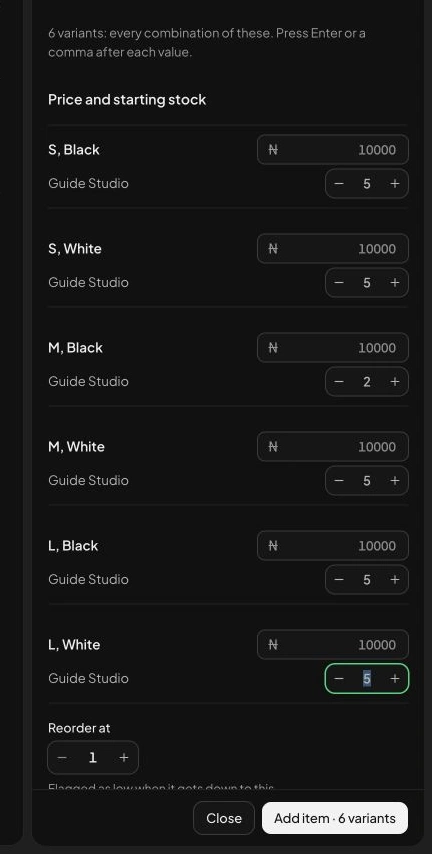
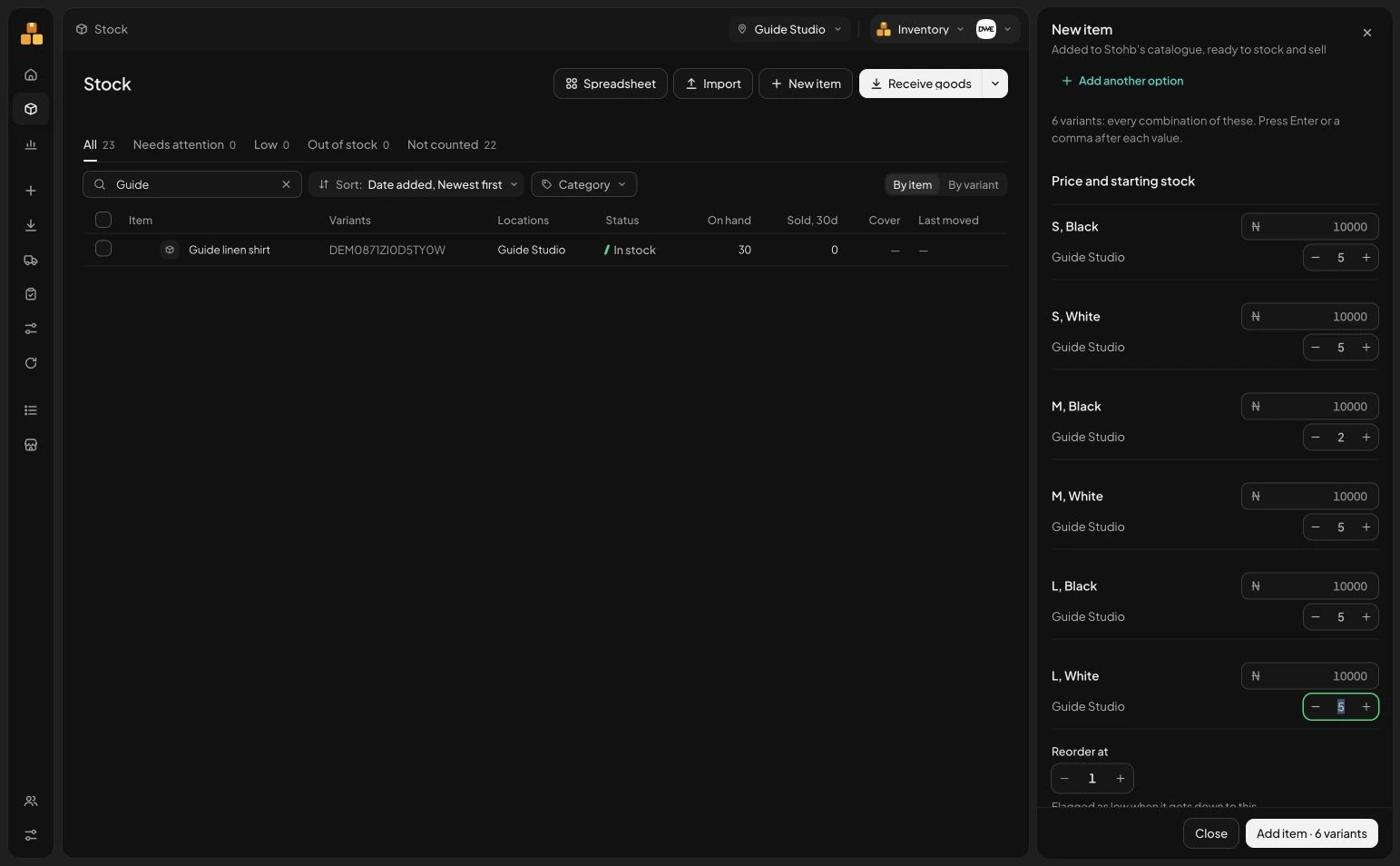
Review Price and starting stock. Check the price and starting quantity for every combination at the chosen location. We give M, Black two units and the other five combinations five units each. That totals 27 units, but availability for M, Black is still only two. Review the rows before Add item; a business-wide total cannot replace these detailed counts.
 Enlarge screenshot
Each generated combination has its own starting-stock control. Check the result: Every variant has a deliberate opening quantity rather than an assumed share of the total.
3. Expand the saved variants in Stock
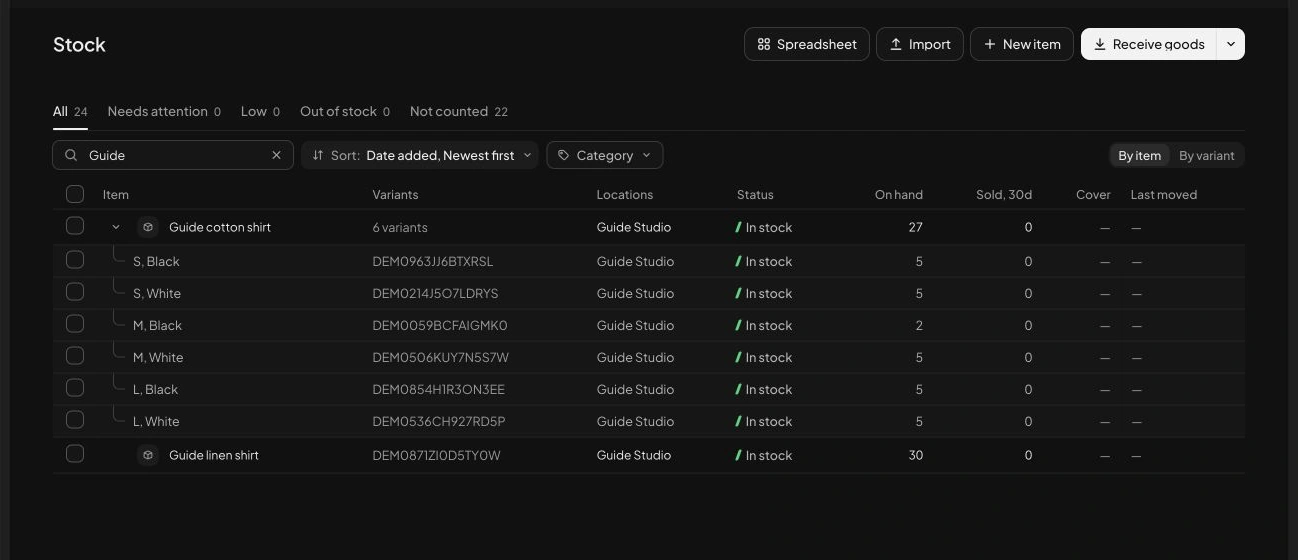
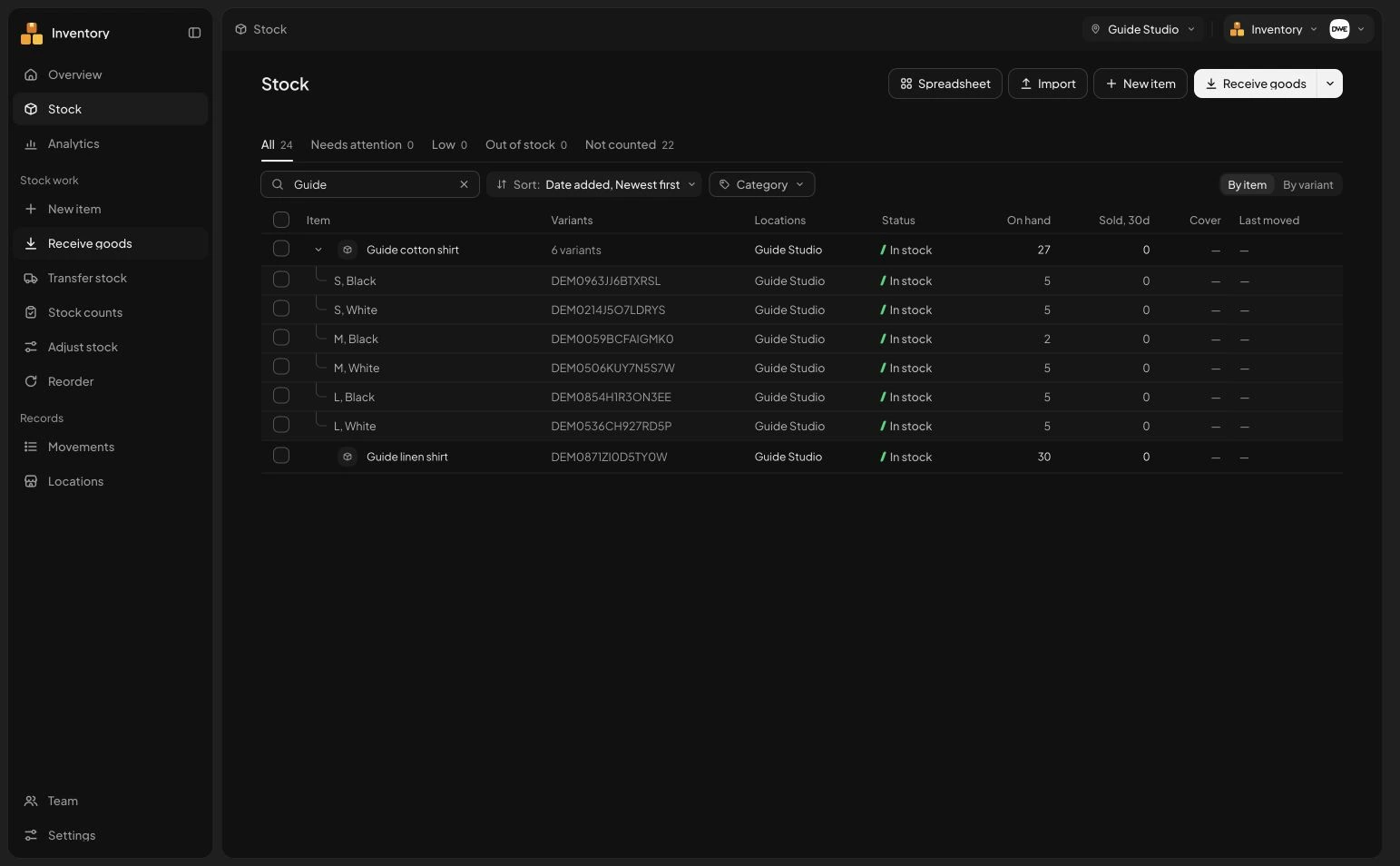
Return to Stock and find the item. Expand the row with its variant control. Stohb shows each size-and-colour combination and its on-hand quantity. Use this detail when answering an availability question or preparing an order. Check the location selector too: the same variant can have different quantities at different shops.
 Enlarge screenshot
The saved six-variant stock view, including two M, Black units. Check the result: You can answer the customer’s question about the exact version they want.
Review the same product’s variants in Central
Use Central when you are already managing the catalogue there. Open the same item rather than making a disconnected duplicate.
1. Open the item’s Variants tab
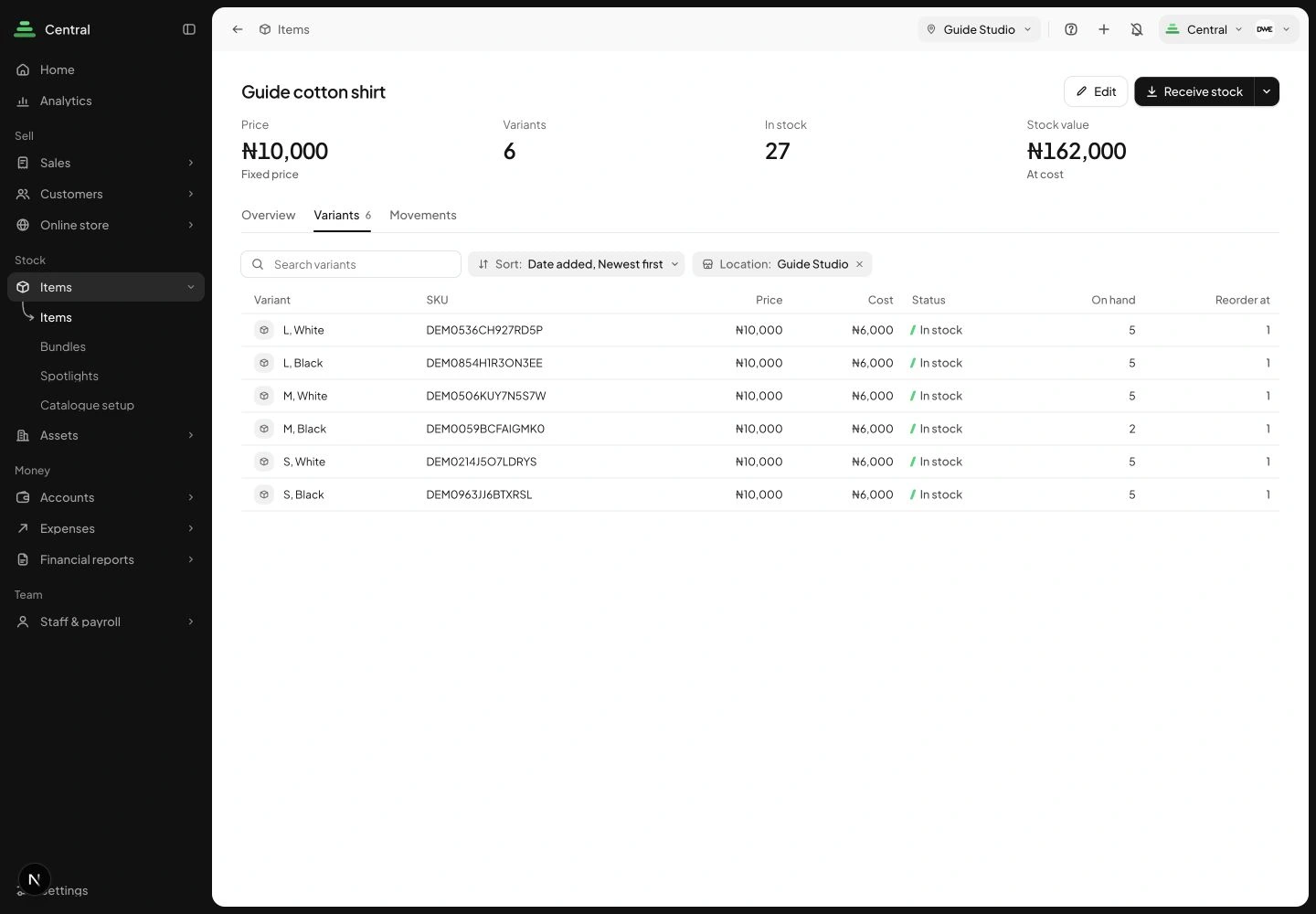
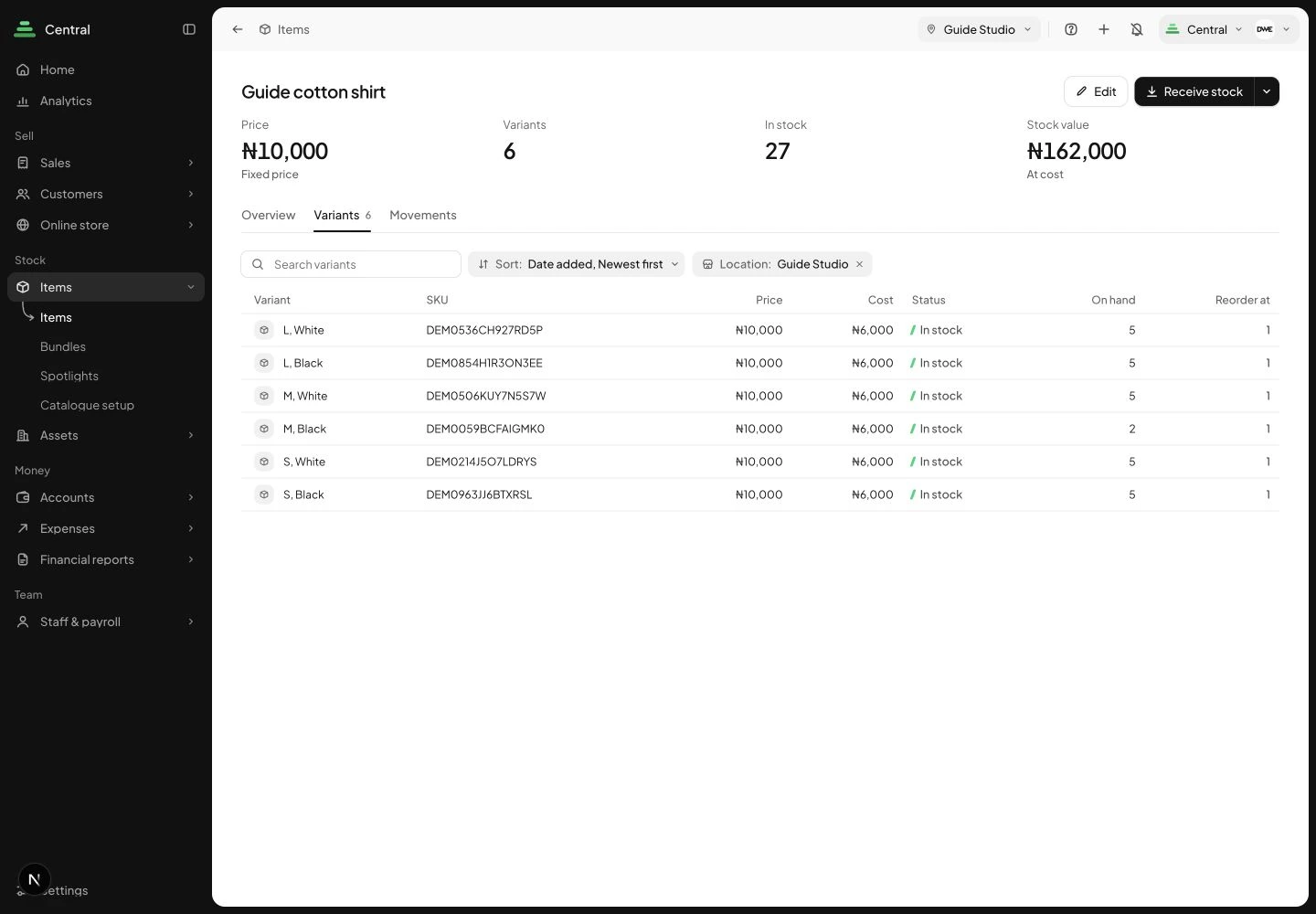
Find the product under Items in Central and open Variants. The example shows the six variants created for Guide cotton shirt. This gives the business another view of the same catalogue identity. Check the exact combination before deciding what is available or changing its price.
 Enlarge screenshot
The guide product’s Variants view in Central. Check the result: You have found the existing variants in Central.
2. Use Edit options & variants when the range changes
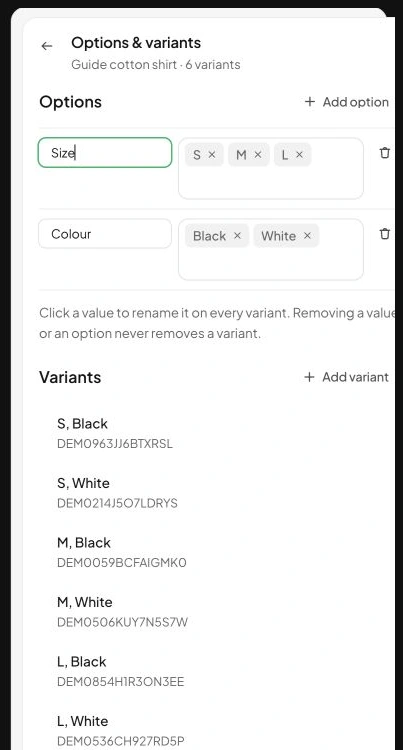
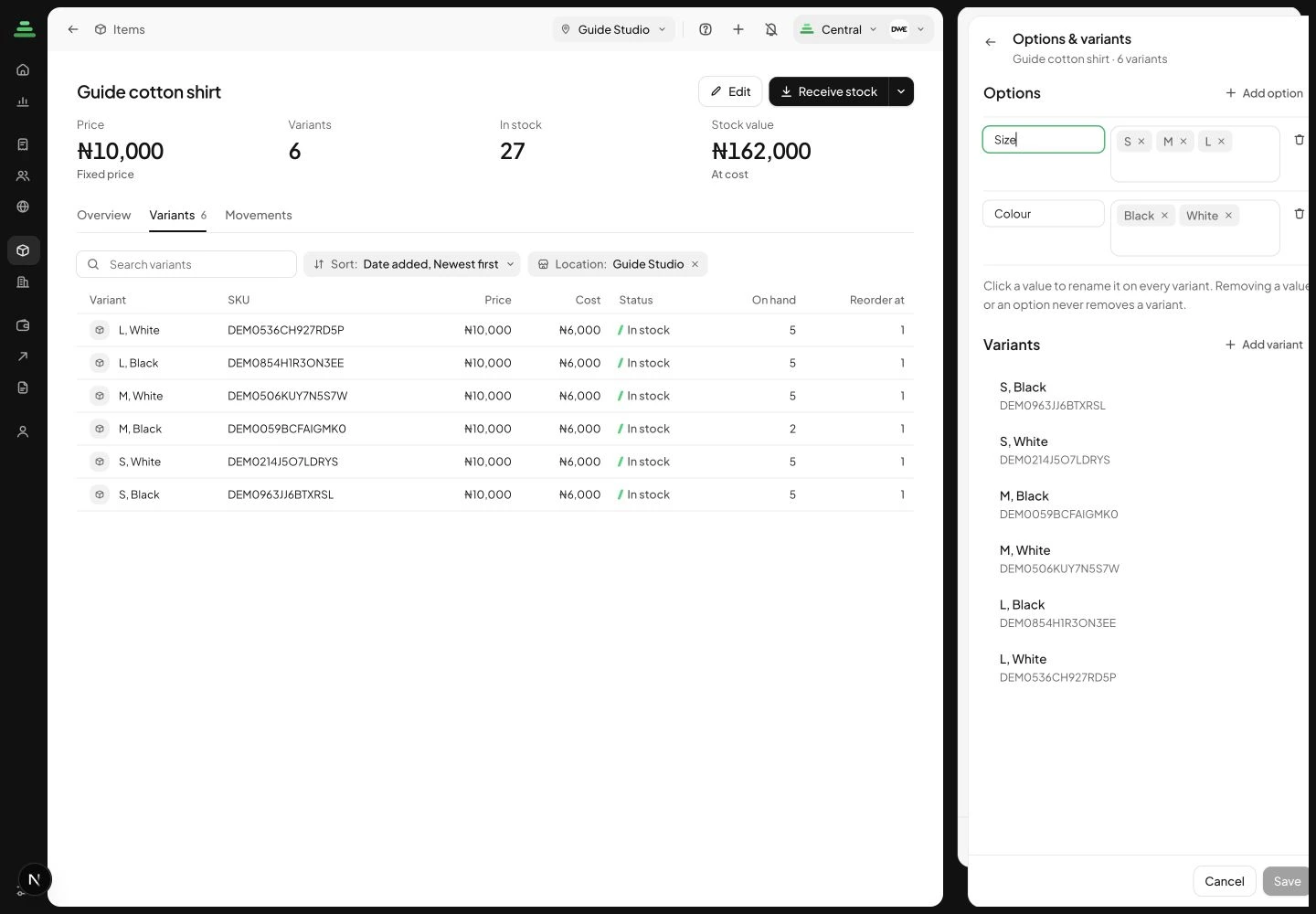
Choose Edit on the item and open Edit options & variants. Review the option values and resulting variants. A new size or colour is a catalogue decision, not evidence that physical goods have arrived. Check the stock records and any existing variants before saving changes so the range remains understandable to the team.
 Enlarge screenshot
Central’s actual options-and-variants editor for the guide item. Check the result: You know where to review or change the range without creating an unrelated product.
Understand the decisions behind the steps
The app keeps the record useful. These explanations help you decide what to enter and how to interpret what Stohb shows.
Understand the difference between a product and a variant
A product can be a design, while a variant is the exact version a customer can buy. A linen shirt may come in black and white, with small, medium and large sizes. Those options produce six possible colour-and-size combinations.
Track the combinations you actually sell. Creating a possible option does not mean physical stock exists for it. If white large is not part of your range, do not present it as available merely because it fits the pattern.
Build a matrix you can check
Put colours down one side and sizes across the other. Write a quantity in each sellable combination. This makes missing combinations, zero stock and uneven availability easier to see. Keep unknown quantities distinct from a confirmed zero until you have counted them.
For example, black small may have 5 units, black medium 2 and black large 5. White small, medium and large may each have 5. The overall total is 27, but the availability of black medium is still only 2. A customer buying three of that variant cannot be served from the total alone.
Use clear, stable identifiers
Give each sellable combination a consistent name or product identifier. If you use internal codes, document what the parts mean and avoid using the same code for two different sizes. A stable identifier helps connect a purchase, count and sale to the same version.
An internal SKU is not automatically a registered retail barcode. Do not create a random scannable code and assume it meets an external standard. For everyday stock records, the immediate need is a unique, understandable way to identify the combination.
Count variants at their actual locations
A black medium shirt in Ikeja and one in Abuja are the same sellable variant at different locations. Keep those quantities distinct. A business-wide total cannot tell the person at the counter whether the item is on the shelf they can access.
In Stohb Inventory, review stock by item, variant and location. Count physical goods using the same structure. During receiving or transfers, check both the variant and location so an accurate quantity does not end up attached to the wrong version.
Test a sale and inspect the result
Use a controlled demonstration to select the exact variant through the selling process. Check the saved sale and the resulting stock record. Do not stop after seeing a total on the checkout screen; confirm that the selected version and location are correct.
A return also needs care. Inspect whether the goods are actually sellable and follow the appropriate supported process. Returning a damaged medium shirt should not quietly increase the number of usable large shirts because someone selected a similar catalogue row.
Keep the customer-facing options accurate
Review what shoppers see when a version is unavailable or discontinued. Use the current supported catalogue and storefront controls rather than assuming every template behaves identically. Preserve historical records when a version is no longer offered.
When customers repeatedly request a size you cannot supply, record that demand separately from completed sales. Use it as one input to buying decisions, alongside actual sales, supplier timing and available cash. Correct variant records make that conversation much more useful than a single total for all shirts.
Before you move on
- Identify each sellable size-and-colour combination.
- Keep unknown quantities distinct from counted zeroes.
- Check quantities per location.
- Test that sales and movements refer to the intended variant.
A few useful answers
Does each size need its own quantity?
Yes, when it is a separately sellable version. A total across all sizes cannot answer whether one particular size is available.
Can the same variant have stock in two shops?
Yes. Keep the variant identity consistent and track its quantity at each location.